TRAVEI

TRAVEI guide for kids

Look at the picture.

Do what is marked in red 👆.

Em português: guia em imagens

Screenshots in light mode. See them in dark mode

🎬 Video: how to use TRAVEI

About 1 and a half minutes. It has captions.

⬇ Download the video · AI-generated voice (Piper, trained on LibriTTS, CC BY 4.0).

1. Install TRAVEI

Ask a grown-up for help if you need it.

📱 Android phone (Chrome)

A1
travei.com.br/app⋮
Open Chrome. Type travei.com.br/app. Tap the 3 dots ⋮.Drawing. Your phone screen may look a little different.
A2
travei.com.br/app⋮
Tap Install app.Drawing. Your phone screen may look a little different.

🍎 iPhone (Safari)

B1
travei.com.br
‹›⬆︎📖⧉
Open Safari. Type travei.com.br/app. Tap Share ⬆︎.Drawing. Your phone screen may look a little different.
B2
Copy
Add Bookmark
➕ Add to Home Screen
Print
Tap Add to Home Screen. Then tap Add.Drawing. Your phone screen may look a little different.
B3
📷Camera
🗓Calendar
TTRAVEI
⚙Settings
Tap the TRAVEI icon. On iPhone, type the code only after you open it from the icon.Drawing. Your phone screen may look a little different.

2. Sign in with the code

Ask your family for the code. The code works for 10 minutes.

1
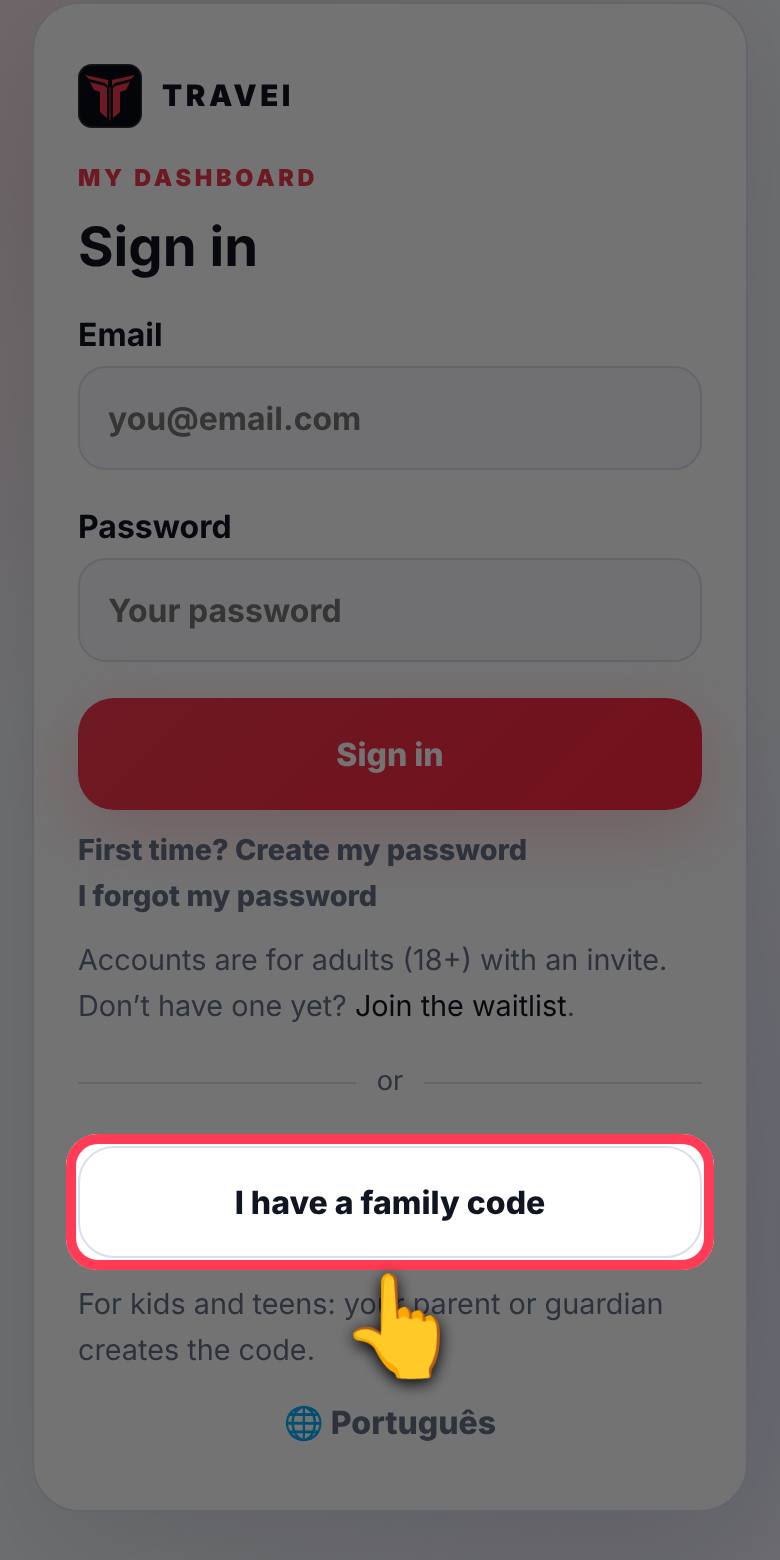
TRAVEI sign-in screen with the I have a family code button highlighted
Tap “I have a family code”.
2
Code box highlighted, with the code ABCD 1234
Type the code.
3
Sign in button highlighted
Tap Sign in.

3. Use it every day

4
Current task card highlighted
This is your task for right now.
5
I started button highlighted
Did you start the task? Tap I started.
6
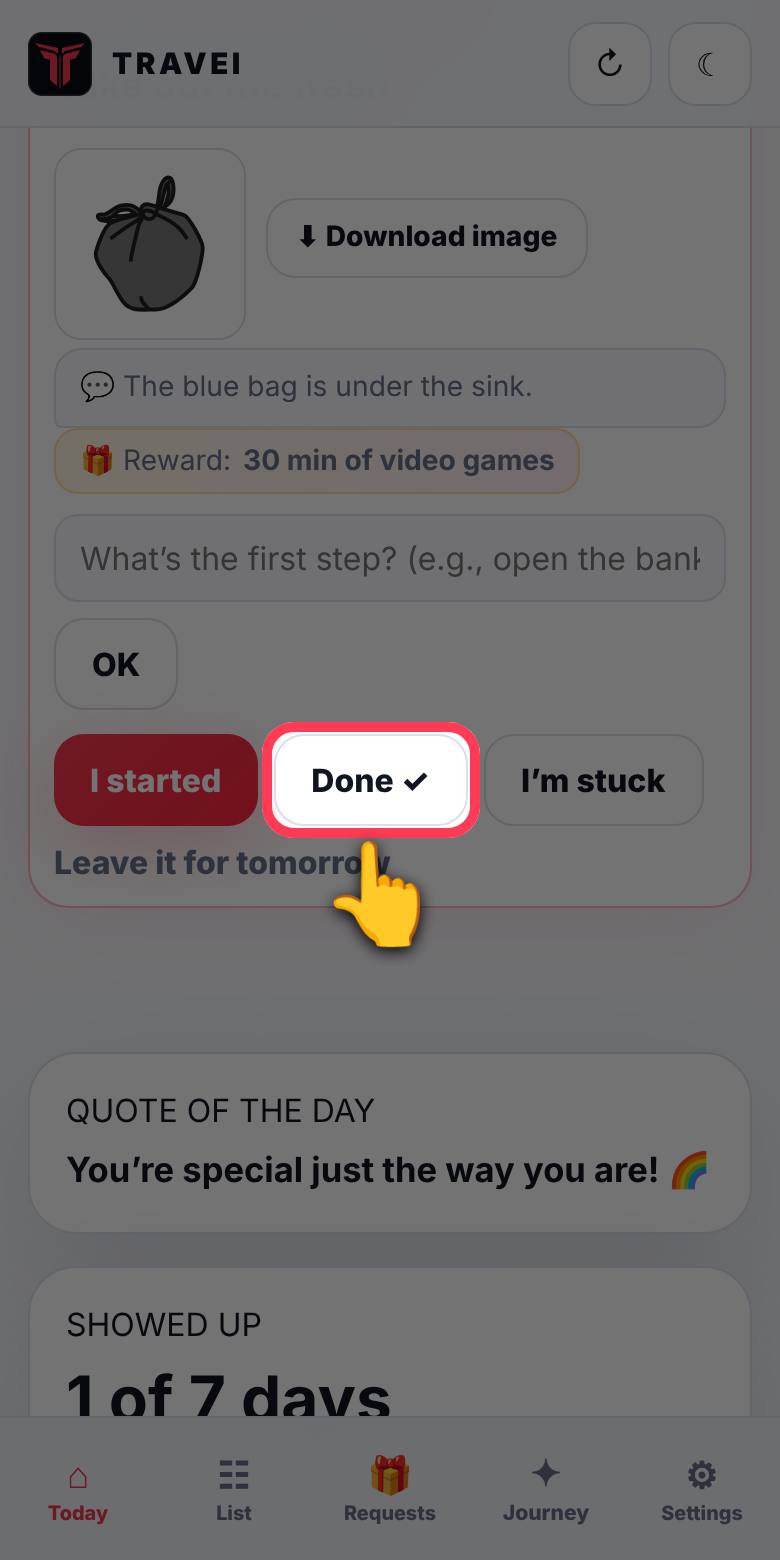
Done button highlighted
Did you finish the task? Tap Done ✓.
7
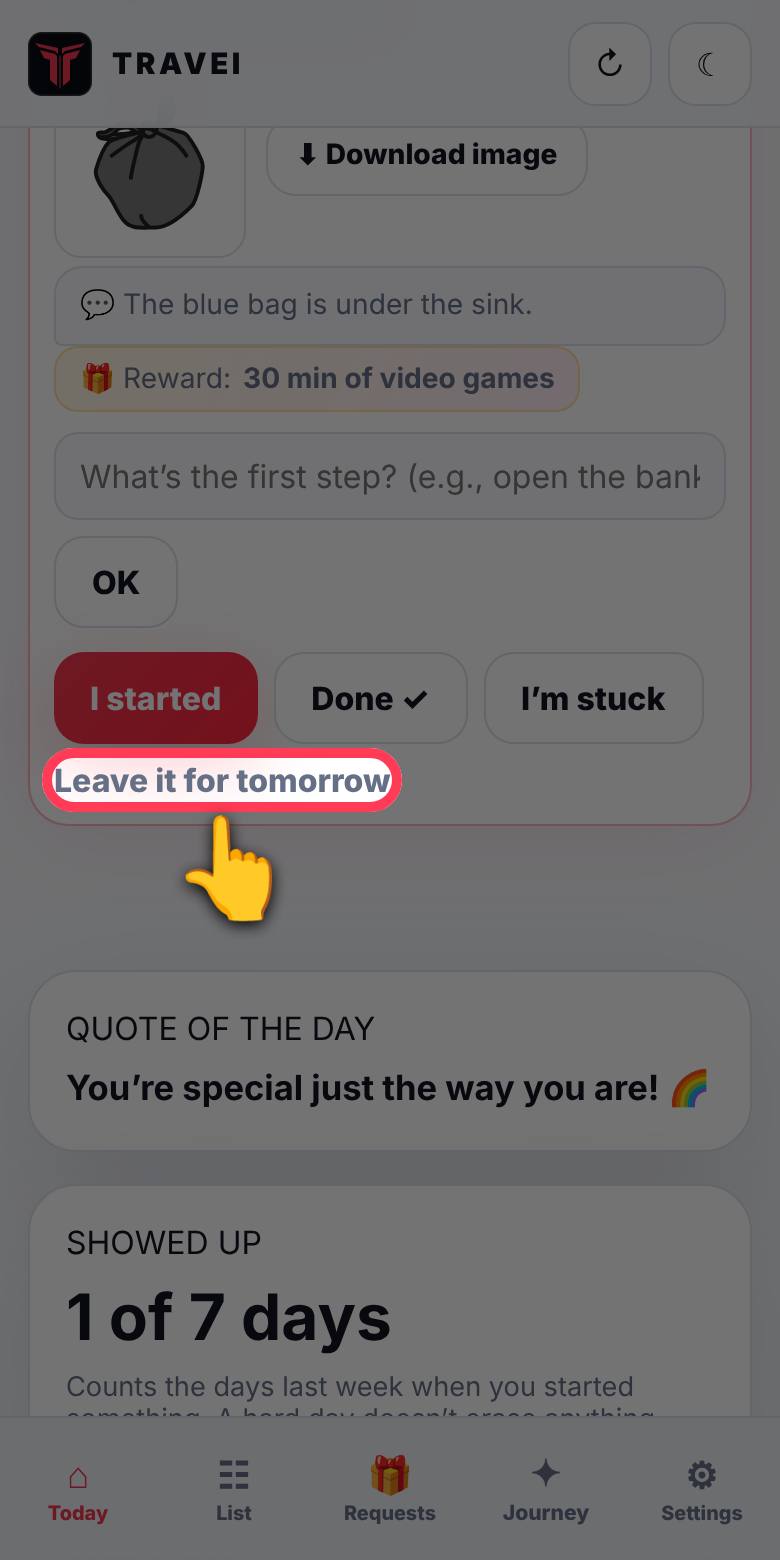
Leave it for tomorrow button highlighted
Can’t do it today? Tap Leave it for tomorrow.
8
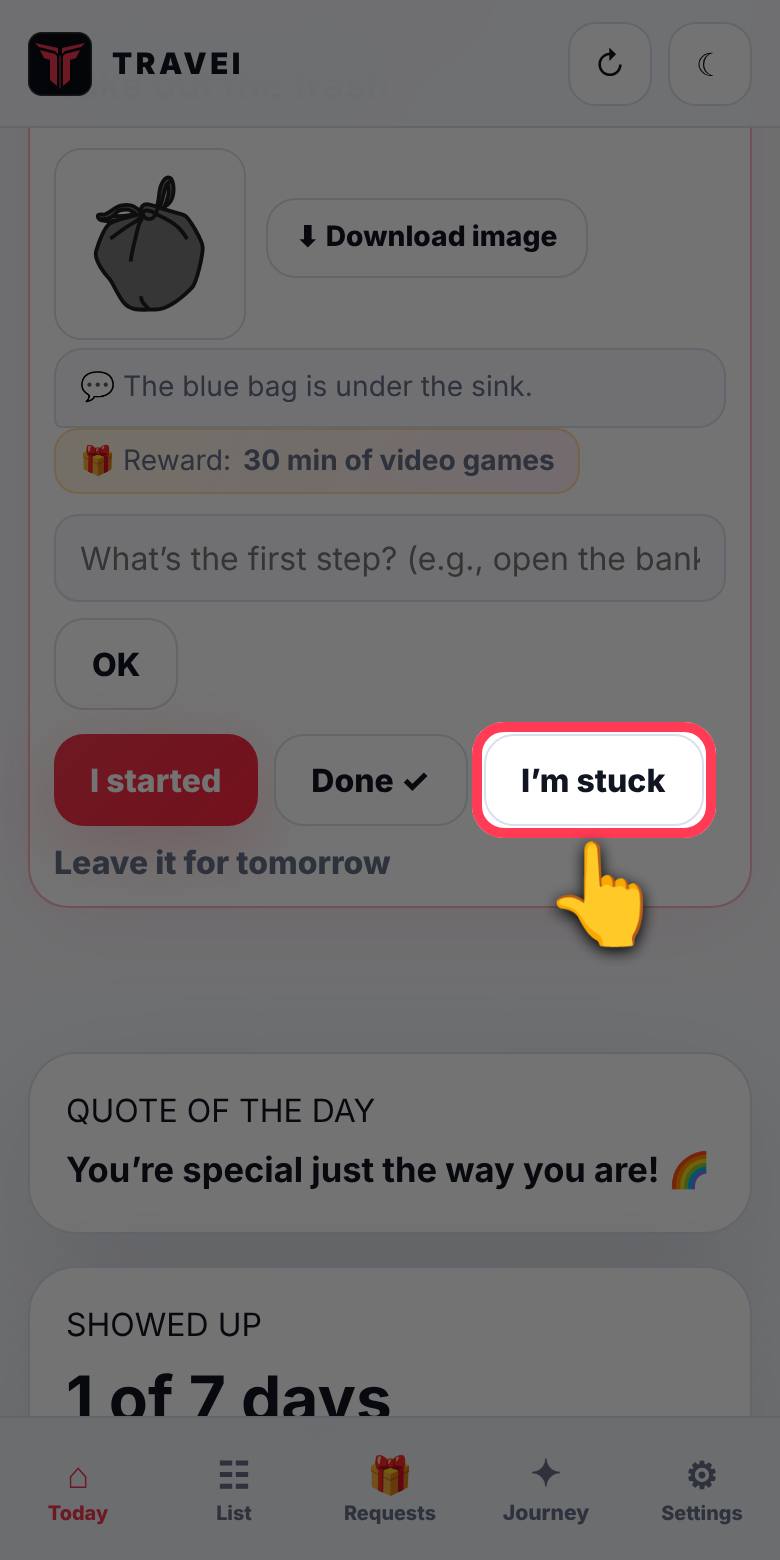
I’m stuck button highlighted
Is it hard to start? Tap I’m stuck.
9
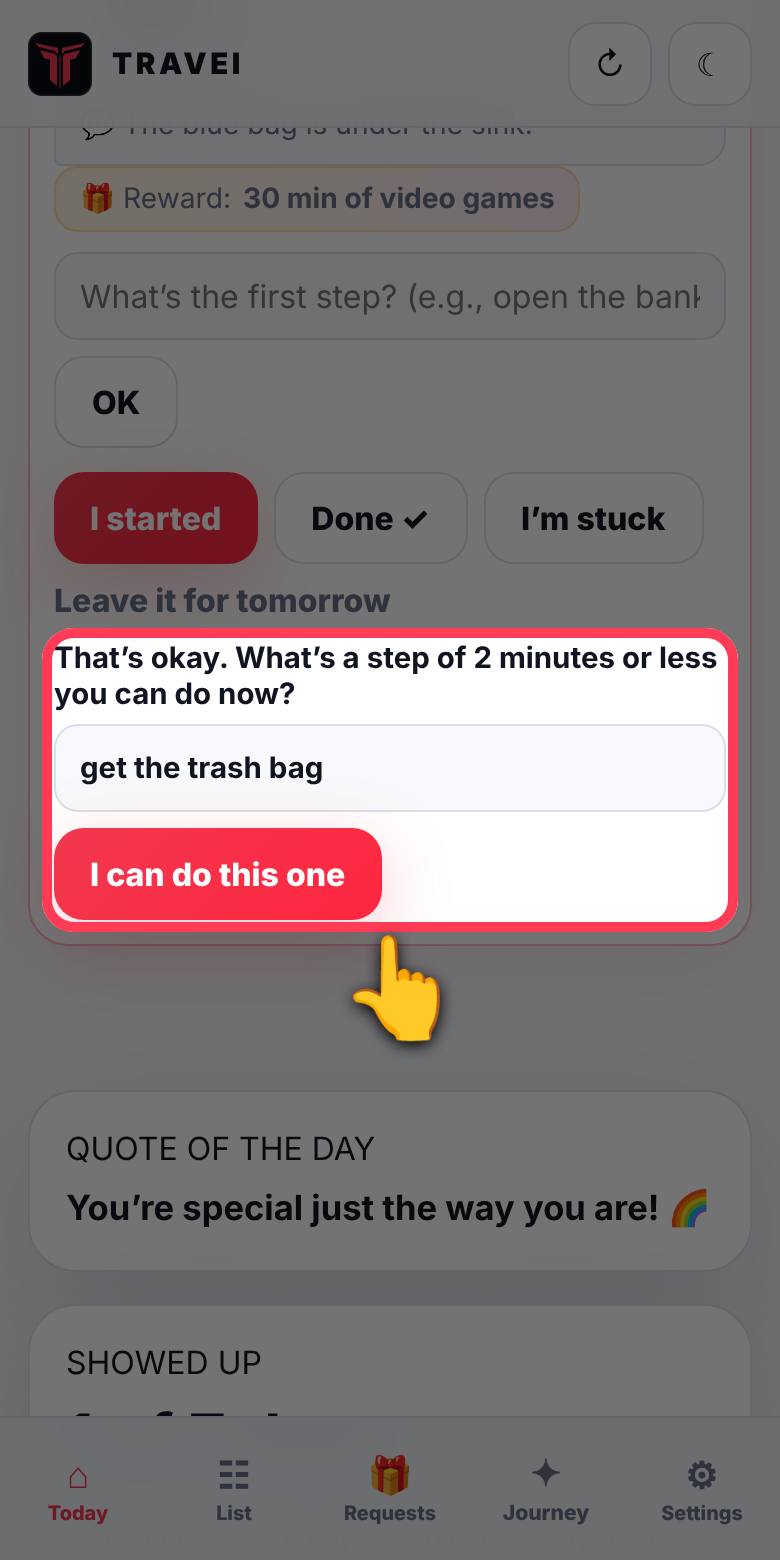
Question about the small step, with the answer get the trash bag
Write one small thing. Tap I can do this one. Do that small thing.

4. Your family

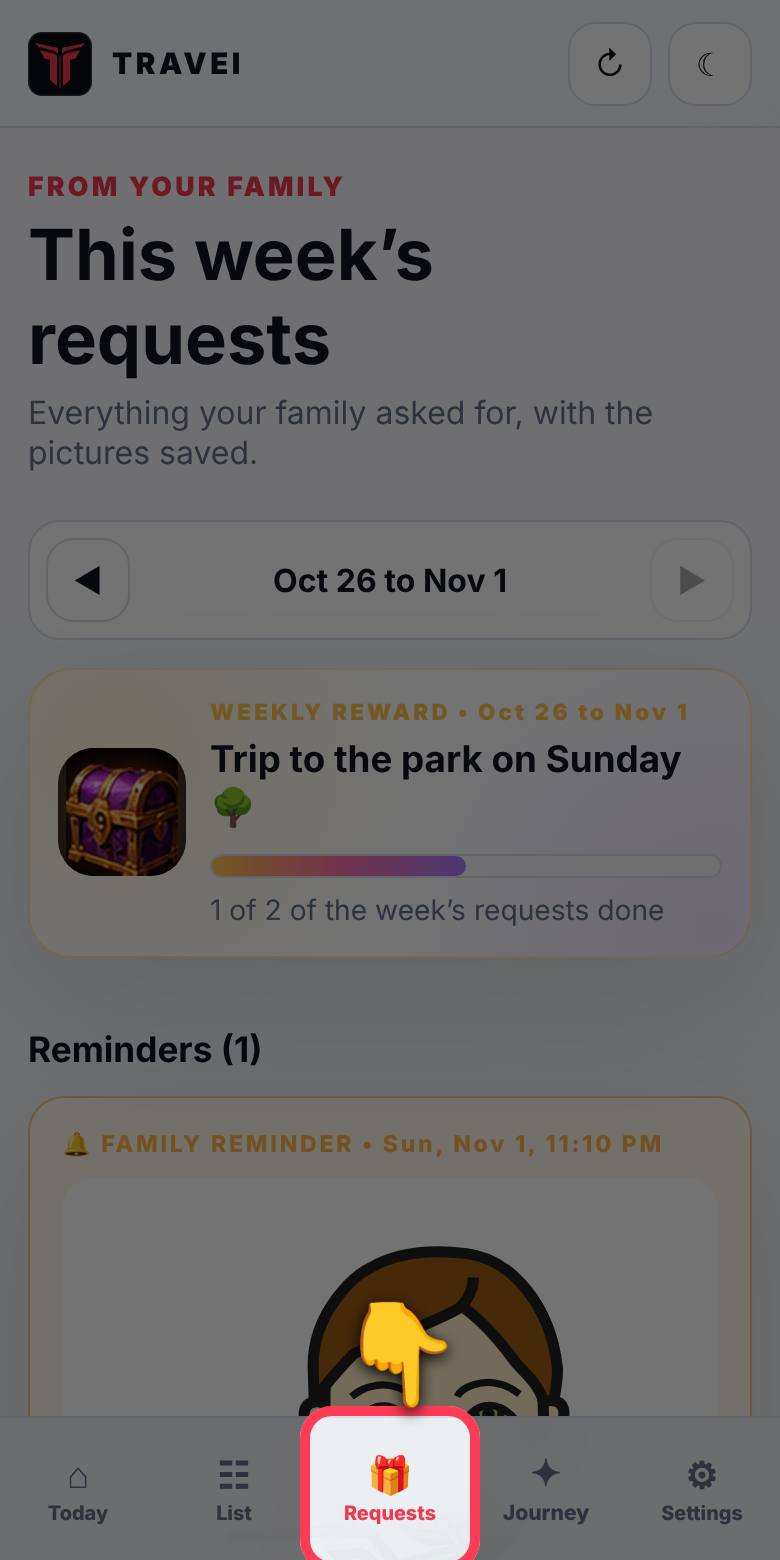
10
Requests button in the menu highlighted
Tap Requests. Your family’s tasks are here.
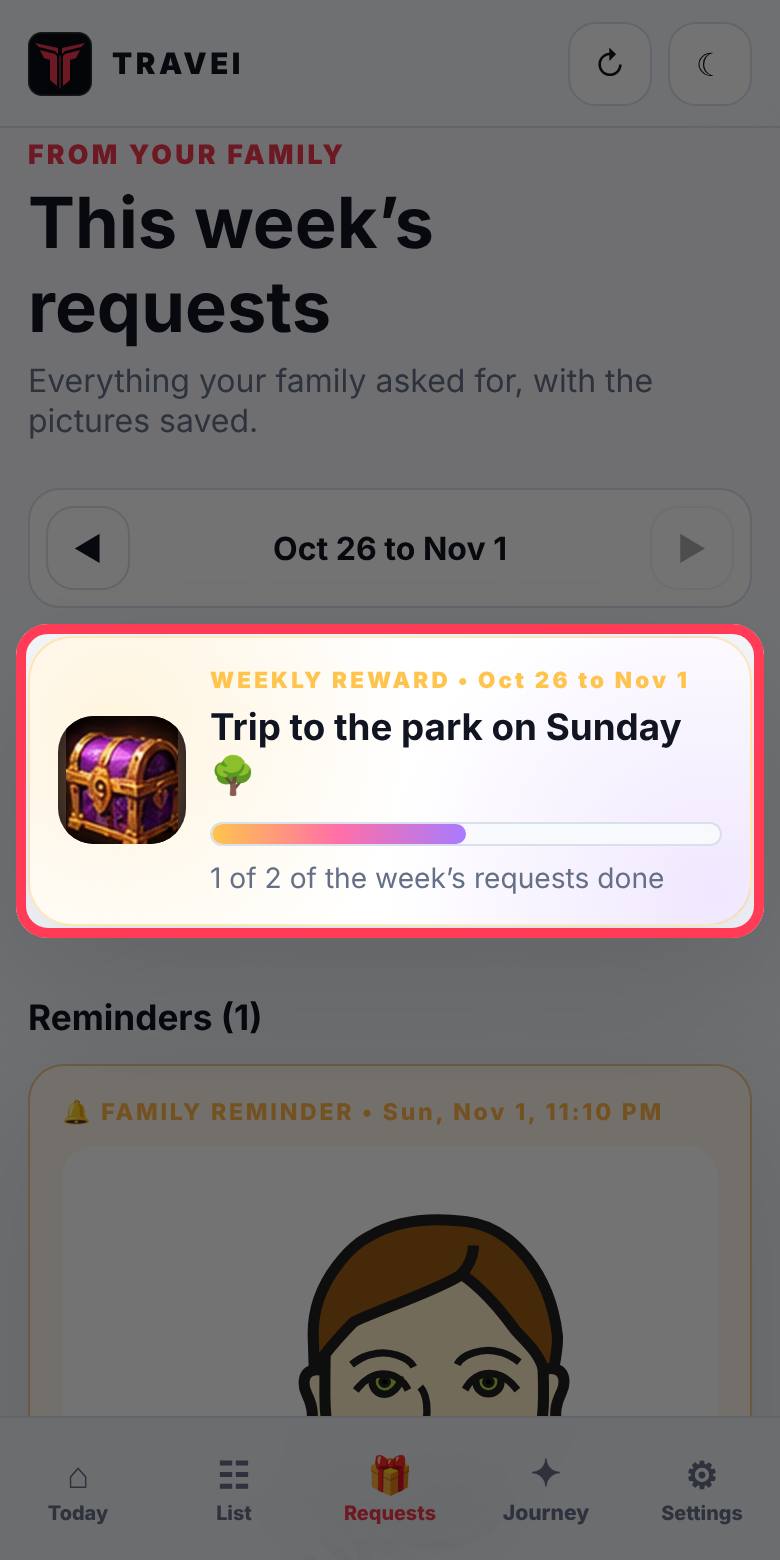
11
Weekly treasure chest highlighted
This is the treasure chest. It shows the prize for the week. Your family gives you the prize.

5. Speak, listen and alerts

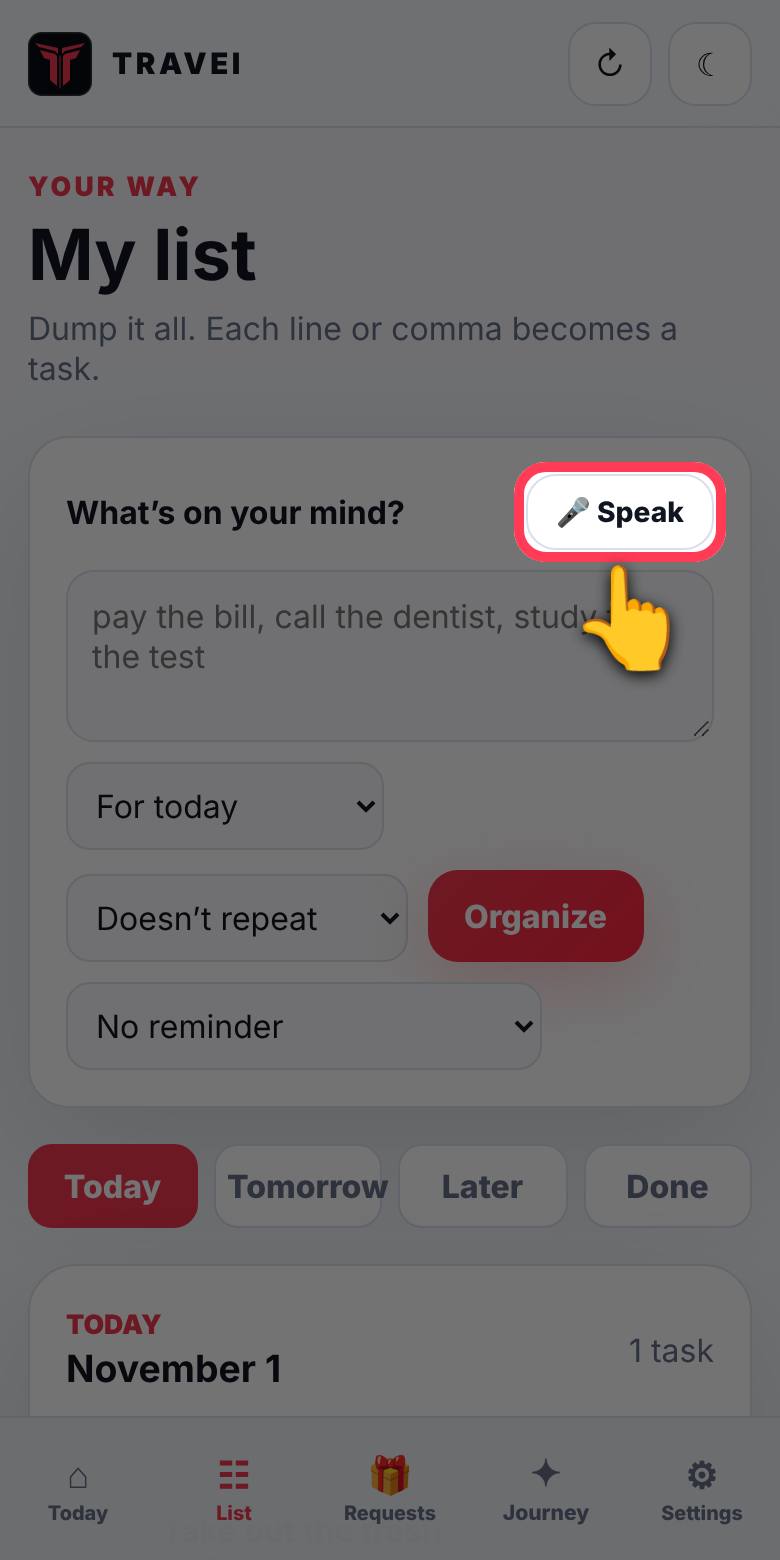
12
Speak button highlighted
Don’t want to type? In the List, tap 🎤 Speak and say the task.
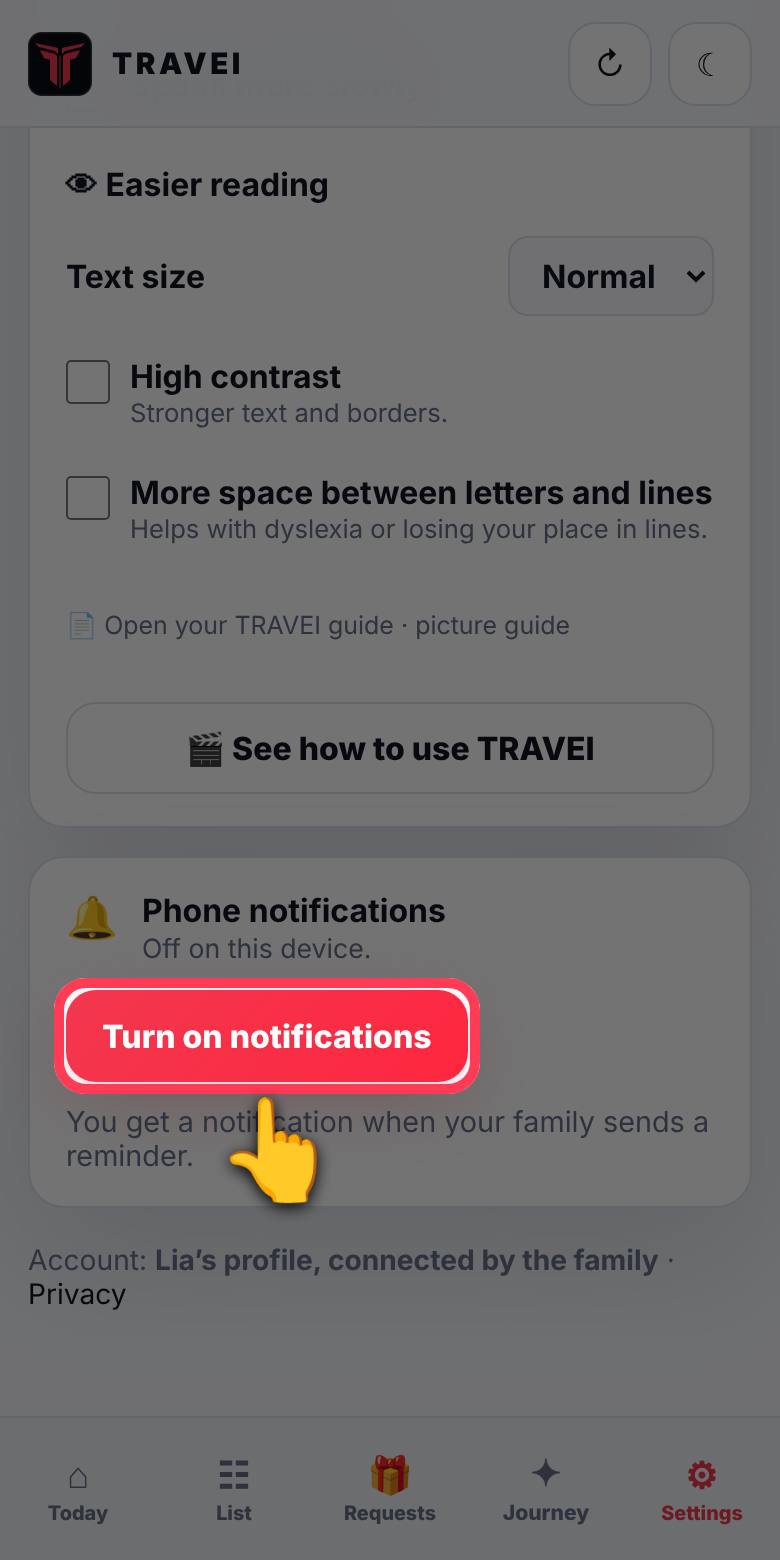
13
Turn on notifications button highlighted
In Settings, tap Turn on notifications. Then tap Allow.
14
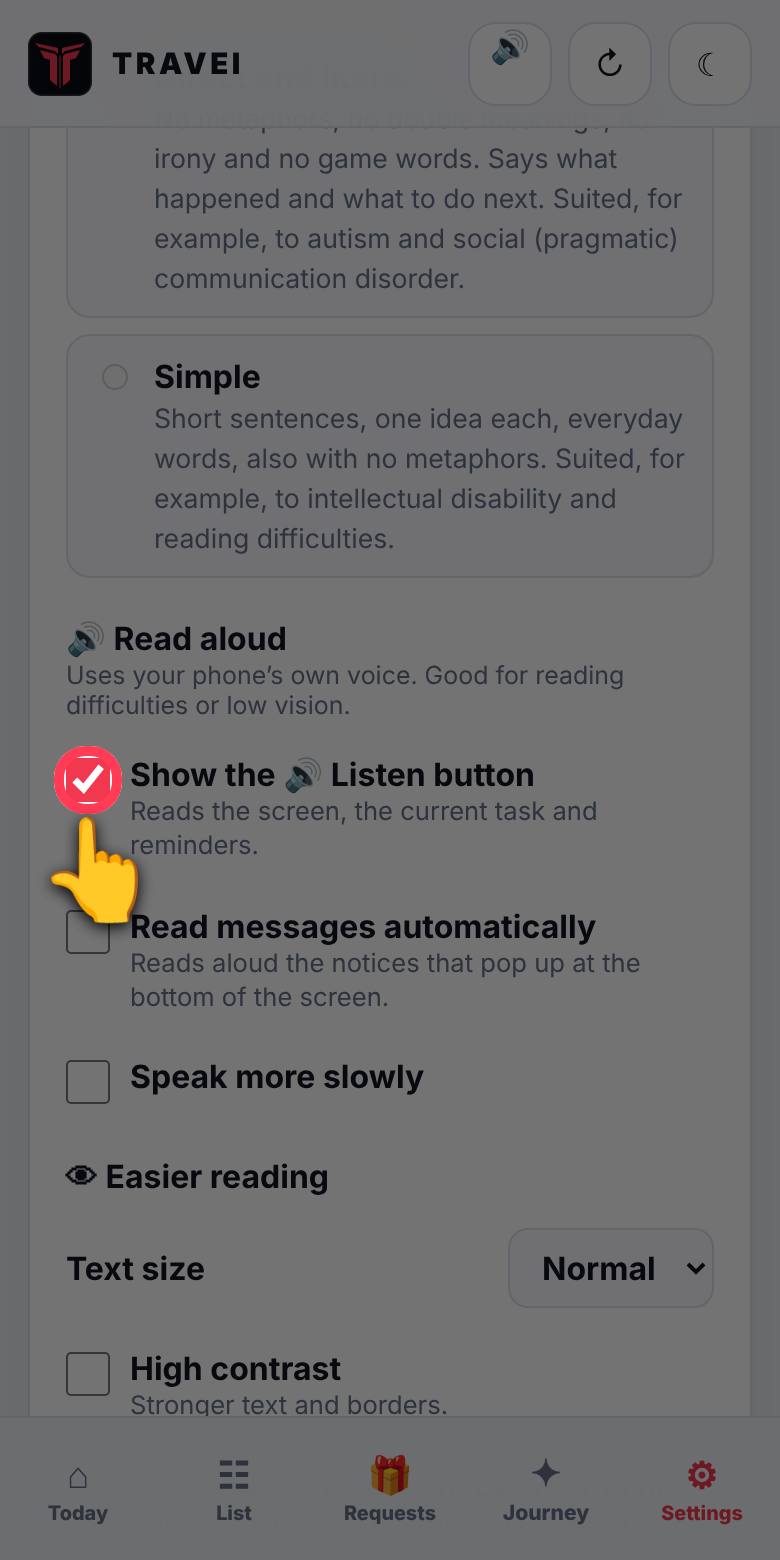
Show the Listen button option checked and highlighted
In Settings, check Show the 🔊 Listen button.
15
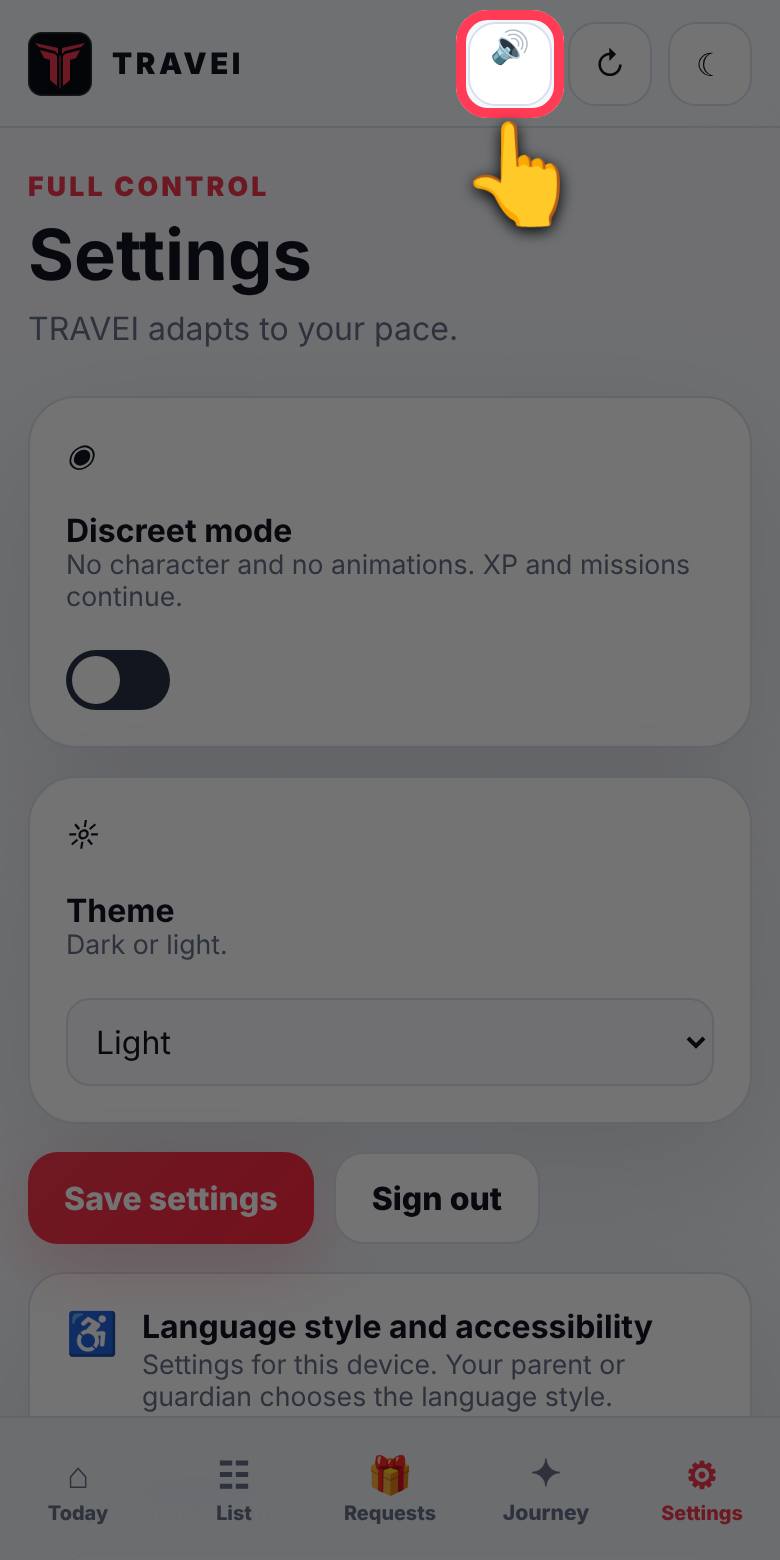
Listen button at the top highlighted
Tap 🔊. The phone reads the screen out loud for you.

Open TRAVEI